---
slug: "forge-antinomyhq"
source_type: "readme"
source_url: "https://cdn.jsdelivr.net/gh/antinomyhq/forge@main/README.md"
repo: "https://github.com/antinomyhq/forge"
source_file: "README.md"
branch: "main"
---
⚒️ Forge: AI-Enhanced Terminal Development Environment
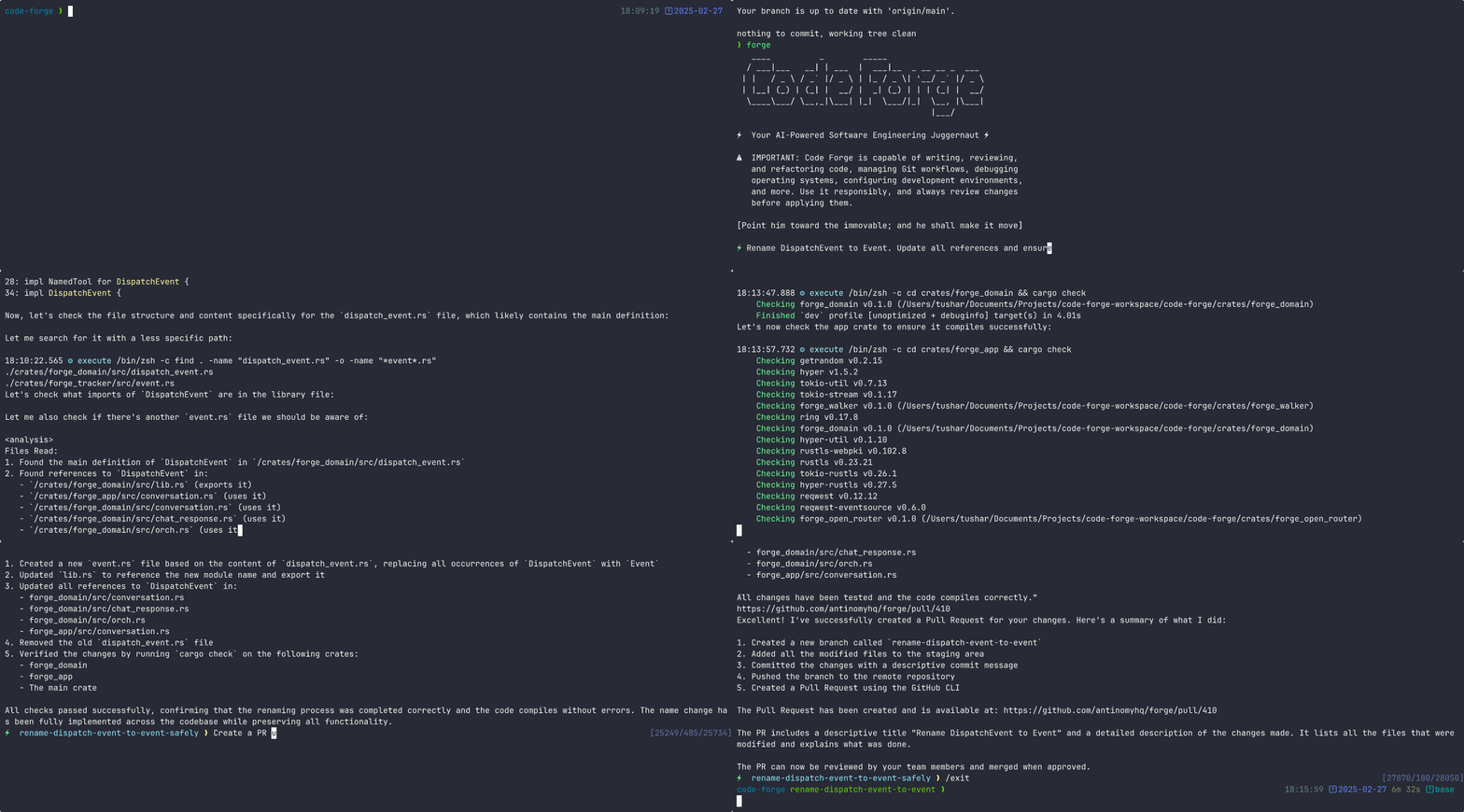
A comprehensive coding agent that integrates AI capabilities with your development environment
curl -fsSL https://forgecode.dev/cli | sh
[](https://github.com/tailcallhq/forgecode/actions)
[](https://github.com/tailcallhq/forgecode/releases)
[](https://discord.gg/kRZBPpkgwq)
[](https://cla-assistant.io/tailcallhq/forgecode)
---
Table of Contents
- [Quickstart](#quickstart)
- [Usage Examples](#usage-examples)
- [Why Forge?](#why-forge)
- [How Forge Works: Three Modes](#how-forge-works-three-modes)
- [Interactive Mode (TUI)](#interactive-mode-tui)
- [One-Shot CLI Mode](#one-shot-cli-mode)
- [ZSH Plugin Mode (`:` prefix)](#zsh-plugin-mode--prefix)
- [ZSH Plugin: The `:` Prefix System](#zsh-plugin-the--prefix-system)
- [Agents](#agents)
- [Sending Prompts](#sending-prompts)
- [Attaching Files](#attaching-files)
- [Conversation Management](#conversation-management)
- [Git Integration](#git-integration)
- [Shell Command Tools](#shell-command-tools)
- [Session & Configuration](#session--configuration)
- [Skills](#skills)
- [Customizing Agent Behavior](#customizing-agent-behavior)
- [Semantic Search (Workspace)](#semantic-search-workspace)
- [Quick Reference: All `:` Commands](#quick-reference-all--commands)
- [Command-Line Options](#command-line-options)
- [Advanced Configuration](#advanced-configuration)
- [Provider Configuration](#provider-configuration)
- [Managing Provider Credentials](#managing-provider-credentials)
- [Deprecated: Environment Variables](#deprecated-environment-variables)
- [forge.yaml Configuration Options](#forgeyaml-configuration-options)
- [Environment Variables](#environment-variables)
- [MCP Configuration](#mcp-configuration)
- [Example Use Cases](#example-use-cases)
- [Usage in Multi-Agent Workflows](#usage-in-multi-agent-workflows)
- [Documentation](#documentation)
- [Community](#community)
- [Support Us](#support-us)
---
## Quickstart
To get started with Forge, run the command below:
```bash
curl -fsSL https://forgecode.dev/cli | sh
```
On first run, Forge will guide you through setting up your AI provider credentials using the interactive login flow. Alternatively, you can configure providers beforehand:
```bash
# Configure your provider credentials interactively
forge provider login
# Then start Forge
forge
```
That's it! Forge is now ready to assist you with your development tasks.
## Usage Examples
Forge can be used in different ways depending on your needs. Here are some common usage patterns:
Code Understanding
```
> Can you explain how the authentication system works in this codebase?
```
Forge will analyze your project's structure, identify authentication-related files, and provide a detailed explanation of the authentication flow, including the relationships between different components.
Implementing New Features
```
> I need to add a dark mode toggle to our React application. How should I approach this?
```
Forge will suggest the best approach based on your current codebase, explain the steps needed, and even scaffold the necessary components and styles for you.
Debugging Assistance
```
> I'm getting this error: "TypeError: Cannot read property 'map' of undefined". What might be causing it?
```
Forge will analyze the error, suggest potential causes based on your code, and propose different solutions to fix the issue.
Code Reviews
```
> Please review the code in src/components/UserProfile.js and suggest improvements
```
Forge will analyze the code, identify potential issues, and suggest improvements for readability, performance, security, and maintainability.
Learning New Technologies
```
> I want to integrate GraphQL into this Express application. Can you explain how to get started?
```
Forge will provide a tailored tutorial on integrating GraphQL with Express, using your specific project structure as context.
Database Schema Design
```
> I need to design a database schema for a blog with users, posts, comments, and categories
```
Forge will suggest an appropriate schema design, including tables/collections, relationships, indexes, and constraints based on your project's existing database technology.
Refactoring Legacy Code
```
> Help me refactor this class-based component to use React Hooks
```
Forge can help modernize your codebase by walking you through refactoring steps and implementing them with your approval.
Git Operations
```
> I need to merge branch 'feature/user-profile' into main but there are conflicts
```
Forge can guide you through resolving git conflicts, explaining the differences and suggesting the best way to reconcile them.
## Why Forge?
Forge is designed for developers who want to enhance their workflow with AI assistance while maintaining full control over their development environment.
- **Zero configuration** - Just add your API key and you're ready to go
- **Seamless integration** - Works right in your terminal, where you already work
- **Multi-provider support** - Use OpenAI, Anthropic, or other LLM providers
- **Secure by design** - Restricted shell mode limits file system access and prevents unintended changes
- **Open-source** - Transparent, extensible, and community-driven
Forge helps you code faster, solve complex problems, and learn new technologies without leaving your terminal.
---
## How Forge Works: Three Modes
Forge has three distinct ways to use it. Understanding this distinction upfront will save you confusion.
### Interactive Mode (TUI)
Running `forge` with no arguments starts the interactive terminal UI, a persistent session where you type prompts and the AI responds in a conversational loop. This is the primary way to do multi-step work.
```bash
forge # Start a new interactive session
forge conversation resume # Resume a specific saved conversation in interactive mode
forge --conversation-id # Same: resume conversation by ID
forge --agent # Start interactive session with a specific agent
forge -C /path/to/project # Start in a specific directory
forge --sandbox experiment-name # Create an isolated git worktree + branch, then start there
```
Once inside interactive mode, type your prompt and press Enter. Forge reads files, writes patches, runs commands, and maintains context across the whole session.
### One-Shot CLI Mode
Pass `-p` (or `--prompt`) to run a single prompt and exit. Forge does the work and returns to your shell. Useful for scripts, piping output, or quick tasks.
```bash
forge -p "Explain the purpose of src/main.rs"
forge -p "Add error handling to the parse() function in lib.rs"
echo "What does this do?" | forge # Pipe input as the prompt
forge commit # Generate an AI commit message and commit (exits when done)
forge commit --preview # Generate commit message, print it, then exit
forge suggest "find large log files" # Translate natural language to a shell command, then exit
```
> **Note:** `forge conversation resume ` opens the interactive TUI. It does **not** just print a message and exit. If you run it and see the cursor waiting, you are inside the interactive session. Type your prompt or press `Ctrl+C` to exit.
### ZSH Plugin Mode (`:` prefix)
Install the ZSH plugin once with `forge setup`, then use `:` commands directly at your shell prompt without ever typing `forge`. This is the fastest mode for day-to-day development: send prompts, switch conversations, commit, and suggest commands without leaving your shell.
```zsh
: refactor the auth module # Send a prompt to the active agent
:commit # AI-powered git commit
:suggest "find large log files" # Translate description → shell command in your buffer
:conversation # Browse saved conversations with interactive picker
```
See the full [ZSH Plugin reference below](#zsh-plugin-the--prefix-system) for all commands and aliases.
---
## ZSH Plugin: The `:` Prefix System
When you install the ZSH plugin (`forge setup`), you get a `:` prefix command system at your shell prompt. This is the fastest way to use Forge during normal development; you never leave your shell.
**How it works:** Lines starting with `:` are intercepted before the shell sees them and routed to Forge. Everything else runs normally.
```zsh
: # Send a prompt to the active agent
:sage # Send a prompt to a specific agent by name (sage, muse, forge, or any custom agent)
:agent # Switch the active agent; opens interactive picker if no name given
```
### Agents
Forge ships with three built-in agents, each with a different role:
| Agent | Alias | Purpose | Modifies files? |
|---|---|---|---|
| `forge` | (default) | Implementation: builds features, fixes bugs, and runs tests | Yes |
| `sage` | `:ask` | Research: maps architecture, traces data flow, and reads code | No |
| `muse` | `:plan` | Planning: analyzes structure and writes implementation plans to `plans/` | No |
### Sending Prompts
```zsh
: refactor the auth module to use the new middleware
:sage how does the caching layer work? # sage = read-only research agent
:muse design a deployment strategy # muse = planning agent (writes to plans/)
:ask how does X work? # alias for :sage
:plan create a migration plan # alias for :muse
```
The agent context persists. Typing `:sage` alone (no prompt text) switches the active agent to sage for all subsequent `: ` commands.
### Attaching Files
Type `@` in a prompt, then press Tab to fuzzy-search and select files. The path is inserted as `@[filename]` and attached as context to the AI.
```zsh
: review this code @[src/auth.rs] @[tests/auth_test.rs]
```
### Conversation Management
Forge saves every conversation. You can switch between them like switching directories.
```zsh
:new # Start a fresh conversation (saves current for :conversation -)
:new # Start a new conversation and immediately send a prompt
:conversation # Open interactive picker: browse and switch conversations with preview
:conversation # Switch directly to a conversation by ID
:conversation - # Toggle between current and previous conversation (like cd -)
:clone # Branch the current conversation (try a different direction)
:clone # Clone a specific conversation by ID
:rename # Rename the current conversation
:conversation-rename # Rename a conversation via interactive picker
:retry # Retry the last prompt (useful if the AI misunderstood)
:copy # Copy the last AI response to clipboard as markdown
:dump # Export conversation as JSON
:dump html # Export conversation as formatted HTML
:compact # Manually compact context to free up token budget
```
### Git Integration
```zsh
:commit # AI reads your diff, writes a commit message, and commits immediately
:commit # Same, but pass extra context: :commit fix typo in readme
:commit-preview # AI generates the message and puts "git commit -m '...'" in your buffer
# so you can review/edit the message before pressing Enter
```
### Shell Command Tools
```zsh
:suggest # Translate natural language to a shell command and put it in your buffer
:edit # Open $EDITOR to compose a complex multi-line prompt, then send it
```
### Session & Configuration
Some commands change settings for the current session only. Others persist to your config file (`~/forge/.forge.toml`). The distinction matters:
```zsh
# Session-only (reset when you close the terminal; not saved to config)
:model # Change model for this session only
:reasoning-effort # Set reasoning effort: none/minimal/low/medium/high/xhigh/max
:agent # Switch active agent for this session
# Persistent (saved to config file)
:config-model # Set default model globally (alias: :cm)
:config-provider # Switch provider globally (alias: :provider, :p)
:config-reasoning-effort # Set default reasoning effort globally (alias: :cre)
:config-commit-model # Set model used for :commit (alias: :ccm)
:config-suggest-model # Set model used for :suggest (alias: :csm)
:config-reload # Reset session overrides back to global config (alias: :cr)
# View & edit config
:info # Show current session info (model, agent, conversation ID)
:config # Display effective resolved configuration in TOML format
:config-edit # Open config file in $EDITOR (alias: :ce)
:tools # List available tools for the current agent
:skill # List available skills
```
### Skills
Skills are reusable workflows the AI can invoke as tools. Forge ships three built-in skills:
- **`create-skill`**: scaffold a new custom skill
- **`execute-plan`**: execute a plan file from `plans/`
- **`github-pr-description`**: generate a PR description from your diff
Use `:skill` to list available skills. The AI invokes them automatically when relevant, or you can ask explicitly: `: generate a PR description using the github-pr-description skill`.
**Custom skills** live in `SKILL.md` files with YAML front-matter. Precedence (highest first):
| Location | Path | Scope |
|---|---|---|
| Project-local | `.forge/skills//SKILL.md` | This project only |
| Global | `~/forge/skills//SKILL.md` | All projects |
| Built-in | Embedded in binary | Always available |
Project-local skills override global ones, which override built-in ones. To scaffold a new skill, ask: `: create a new skill`.
### Customizing Agent Behavior
**`AGENTS.md`:** Create this file in your project root (or `~/forge/AGENTS.md` globally) to give all agents persistent instructions such as coding conventions, commit message style, and things to avoid. Forge reads it automatically at the start of every conversation.
**Custom agents:** Place a `.md` file with YAML front-matter in `.forge/agents/` (project) or `~/forge/agents/` (global) to define additional agents with their own models, tools, and system prompts. Project-local agents override global ones. The built-in agent files in `crates/forge_repo/src/agents/` are good examples of the format.
**Custom commands:** Place YAML files in `.forge/commands/` (project) or `~/forge/commands/` (global) to define shortcut commands available via `:commandname`. Commands can also be defined inline in `forge.yaml` under the `commands:` key.
### Semantic Search (Workspace)
```zsh
:sync # Index your codebase for semantic search
:workspace-init # Initialize workspace for indexing
:workspace-status # Show indexing status
:workspace-info # Show workspace details
```
After running `:sync`, the AI can search your codebase by meaning rather than exact text matches. Indexing sends file content to the workspace server, which defaults to `https://api.forgecode.dev`. Set `FORGE_WORKSPACE_SERVER_URL` to override this if self-hosting.
### Quick Reference: All `:` Commands
| Command | Alias | What it does |
|---|---|---|
| `: ` | | Send prompt to active agent |
| `:new` | `:n` | Start new conversation |
| `:conversation` | `:c` | Browse/switch conversations (interactive picker) |
| `:conversation -` | | Toggle to previous conversation |
| `:clone` | | Branch current conversation |
| `:rename ` | `:rn` | Rename current conversation |
| `:conversation-rename` | | Rename conversation (interactive picker) |
| `:retry` | `:r` | Retry last prompt |
| `:copy` | | Copy last response to clipboard |
| `:dump` | `:d` | Export conversation as JSON |
| `:compact` | | Compact context |
| `:commit` | | AI commit (immediate) |
| `:commit-preview` | | AI commit (review first) |
| `:suggest ` | `:s` | Translate natural language to command |
| `:edit` | `:ed` | Compose prompt in $EDITOR |
| `:sage ` | `:ask` | Q&A / code understanding agent |
| `:muse ` | `:plan` | Planning agent |
| `:agent ` | `:a` | Switch active agent (interactive picker if no name given) |
| `:model ` | `:m` | Set model for this session only |
| `:config-model ` | `:cm` | Set default model (persistent) |
| `:reasoning-effort ` | `:re` | Set reasoning effort for session |
| `:config-reload` | `:cr` | Reset session overrides to global config |
| `:info` | `:i` | Show session info |
| `:sync` | `:workspace-sync` | Index codebase for semantic search |
| `:tools` | `:t` | List available tools |
| `:skill` | | List available skills |
| `:login` | `:provider-login` | Login to a provider |
| `:logout` | | Logout from a provider |
| `:keyboard-shortcuts` | `:kb` | Show keyboard shortcuts |
| `:doctor` | | Run shell environment diagnostics |
---
## Command-Line Options
Here's a quick reference of Forge's command-line options:
| Option | Description |
| ----------------------------------- | ------------------------------------------------------------------------ |
| `-p, --prompt ` | Direct prompt to process without entering interactive mode |
| `-e, --event ` | Dispatch an event to the workflow in JSON format |
| `--conversation ` | Path to a JSON file containing the conversation to execute |
| `--conversation-id ` | Resume or continue an existing conversation by ID |
| `--agent ` | Agent ID to use for this session |
| `-C, --directory ` | Change to this directory before starting |
| `--sandbox ` | Create an isolated git worktree + branch for safe experimentation |
| `--verbose` | Enable verbose logging output |
| `-h, --help` | Print help information |
| `-V, --version` | Print version |
### Subcommands
```bash
# Conversations
forge conversation list # List all saved conversations
forge conversation resume # Resume a conversation in interactive mode
forge conversation new # Create a new conversation ID (prints it)
forge conversation dump # Export conversation as JSON
forge conversation compact # Compact conversation context
forge conversation retry # Retry last message
forge conversation clone # Clone a conversation
forge conversation rename # Rename a conversation
forge conversation delete # Delete a conversation permanently
forge conversation info # Show conversation details
forge conversation stats # Show token usage statistics
forge conversation show # Show last assistant message
# Commits
forge commit # Generate AI commit message and commit
forge commit --preview # Generate commit message only (prints it)
forge commit fix the auth bug # Pass extra context for the commit message
# Shell command suggestion
forge suggest "list files by size" # Translate description to a shell command
# Providers
forge provider login # Add or update provider credentials (interactive)
forge provider logout # Remove provider credentials
forge list provider # List supported providers
# Models & agents
forge list model # List available models
forge list agent # List available agents
# Workspace / semantic search
forge workspace sync # Index current directory for semantic search
forge workspace init # Initialize workspace
forge workspace status # Show indexing status
forge workspace query # Query the semantic index
# MCP servers
forge mcp list # List configured MCP servers
forge mcp import # Add a server from JSON
forge mcp show # Show server configuration
forge mcp remove # Remove a server
forge mcp reload # Reload all servers and rebuild caches
# Other
forge info # Show config, active model, environment
forge list tool --agent # List tools for a specific agent
forge doctor # Run shell environment diagnostics
forge update # Update forge to the latest version
forge setup # Install ZSH plugin (updates .zshrc)
```
## Advanced Configuration
### Provider Configuration
Forge supports multiple AI providers. The recommended way to configure providers is using the interactive login command:
```bash
forge provider login
```
This will:
1. Show you a list of available providers
2. Guide you through entering the required credentials
#### Managing Provider Credentials
```bash
# Login to a provider (add or update credentials)
forge provider login
# Remove provider credentials
forge provider logout
# List supported providers
forge provider list
```
#### Deprecated: Environment Variables
> **⚠️ DEPRECATED**: Using `.env` files for provider configuration is deprecated and will be removed in a future version. Please use `forge provider login` instead.
For backward compatibility, Forge still supports environment variables. On first run, any credentials found in environment variables will be automatically migrated to file-based storage.
Legacy Environment Variable Setup (Deprecated)
OpenRouter
```bash
# .env
OPENROUTER_API_KEY=
```
Requesty
```bash
# .env
REQUESTY_API_KEY=
```
x-ai
```bash
# .env
XAI_API_KEY=
```
z.ai
```bash
# .env
ZAI_API_KEY=
# Or for coding plan subscription
ZAI_CODING_API_KEY=
```
Cerebras
```bash
# .env
CEREBRAS_API_KEY=
```
Neuralwatt
```bash
# .env
NEURALWATT_API_KEY=
```
OrcaRouter
```bash
# .env
ORCAROUTER_API_KEY=
```
Meta
```bash
# .env
META_API_KEY=
```
```yaml
# forge.yaml
model: muse-spark-1.1
```
IO Intelligence
```bash
# .env
IO_INTELLIGENCE_API_KEY=
```
```yaml
# forge.yaml
model: meta-llama/Llama-3.3-70B-Instruct
```
OpenAI
```bash
# .env
OPENAI_API_KEY=
```
```yaml
# forge.yaml
model: o3-mini-high
```
Anthropic
```bash
# .env
ANTHROPIC_API_KEY=
```
```yaml
# forge.yaml
model: claude-3.7-sonnet
```
Google Vertex AI
**Setup Instructions:**
1. **Install Google Cloud CLI** and authenticate:
```bash
gcloud auth login
gcloud config set project YOUR_PROJECT_ID
```
2. **Get your authentication token**:
```bash
gcloud auth print-access-token
```
3. **Use the token when logging in via Forge**:
```bash
forge provider login
# Select Google Vertex AI and enter your credentials
```
**Legacy `.env` setup:**
```bash
# .env
PROJECT_ID=
LOCATION=
VERTEX_AI_AUTH_TOKEN=
```
```yaml
# forge.yaml
model: google/gemini-2.5-pro
```
**Available Models:**
- Claude models: `claude-sonnet-4@20250514`
- Gemini models: `gemini-2.5-pro`, `gemini-2.0-flash`
Use the `/model` command in Forge CLI to see all available models.
OpenAI-Compatible Providers
```bash
# .env
OPENAI_API_KEY=
OPENAI_URL=
```
```yaml
# forge.yaml
model:
```
Groq
```bash
# .env
OPENAI_API_KEY=
OPENAI_URL=https://api.groq.com/openai/v1
```
```yaml
# forge.yaml
model: deepseek-r1-distill-llama-70b
```
Amazon Bedrock
To use Amazon Bedrock models with Forge, you'll need to first set up the [Bedrock Access Gateway](https://github.com/aws-samples/bedrock-access-gateway):
1. **Set up Bedrock Access Gateway**:
- Follow the deployment steps in the [Bedrock Access Gateway repo](https://github.com/aws-samples/bedrock-access-gateway)
- Create your own API key in Secrets Manager
- Deploy the CloudFormation stack
- Note your API Base URL from the CloudFormation outputs
2. **Configure in Forge**:
```bash
forge provider login
# Select OpenAI-compatible provider and enter your Bedrock Gateway details
```
**Legacy `.env` setup:**
```bash
# .env
OPENAI_API_KEY=
OPENAI_URL=
```
```yaml
# forge.yaml
model: anthropic.claude-3-opus
```
ForgeCode Services
```bash
# .env
FORGE_API_KEY=
```
```yaml
# forge.yaml
model: claude-3.7-sonnet
```
---
### forge.yaml Configuration Options
### Environment Variables
Forge supports several environment variables for advanced configuration and fine-tuning. These can be set in your `.env` file or system environment.
Retry Configuration
Control how Forge handles retry logic for failed requests:
```bash
# .env
FORGE_RETRY_INITIAL_BACKOFF_MS=1000 # Initial backoff time in milliseconds (default: 1000)
FORGE_RETRY_BACKOFF_FACTOR=2 # Multiplier for backoff time (default: 2)
FORGE_RETRY_MAX_ATTEMPTS=3 # Maximum retry attempts (default: 3)
FORGE_SUPPRESS_RETRY_ERRORS=false # Suppress retry error messages (default: false)
FORGE_RETRY_STATUS_CODES=429,500,502 # HTTP status codes to retry (default: 429,500,502,503,504)
```
HTTP Configuration
Fine-tune HTTP client behavior for API requests:
```bash
# .env
FORGE_HTTP_CONNECT_TIMEOUT=30 # Connection timeout in seconds (default: 30)
FORGE_HTTP_READ_TIMEOUT=900 # Read timeout in seconds (default: 900)
FORGE_HTTP_POOL_IDLE_TIMEOUT=90 # Pool idle timeout in seconds (default: 90)
FORGE_HTTP_POOL_MAX_IDLE_PER_HOST=5 # Max idle connections per host (default: 5)
FORGE_HTTP_MAX_REDIRECTS=10 # Maximum redirects to follow (default: 10)
FORGE_HTTP_USE_HICKORY=false # Use Hickory DNS resolver (default: false)
FORGE_HTTP_TLS_BACKEND=default # TLS backend: "default" or "rustls" (default: "default")
FORGE_HTTP_MIN_TLS_VERSION=1.2 # Minimum TLS version: "1.0", "1.1", "1.2", "1.3"
FORGE_HTTP_MAX_TLS_VERSION=1.3 # Maximum TLS version: "1.0", "1.1", "1.2", "1.3"
FORGE_HTTP_ADAPTIVE_WINDOW=true # Enable HTTP/2 adaptive window (default: true)
FORGE_HTTP_KEEP_ALIVE_INTERVAL=60 # Keep-alive interval in seconds (default: 60, use "none"/"disabled" to disable)
FORGE_HTTP_KEEP_ALIVE_TIMEOUT=10 # Keep-alive timeout in seconds (default: 10)
FORGE_HTTP_KEEP_ALIVE_WHILE_IDLE=true # Keep-alive while idle (default: true)
FORGE_HTTP_ACCEPT_INVALID_CERTS=false # Accept invalid certificates (default: false) - USE WITH CAUTION
FORGE_HTTP_ROOT_CERT_PATHS=/path/to/cert1.pem,/path/to/cert2.crt # Paths to root certificate files (PEM, CRT, CER format), multiple paths separated by commas
```
> **⚠️ Security Warning**: Setting `FORGE_HTTP_ACCEPT_INVALID_CERTS=true` disables SSL/TLS certificate verification, which can expose you to man-in-the-middle attacks. Only use this in development environments or when you fully trust the network and endpoints.
API Configuration
Override default API endpoints and provider/model settings:
```bash
# .env
FORGE_API_URL=https://api.forgecode.dev # Custom Forge API URL (default: https://api.forgecode.dev)
FORGE_WORKSPACE_SERVER_URL=http://localhost:8080 # URL for the indexing server (default: https://api.forgecode.dev/)
```
Tool Configuration
Configuring the tool calls settings:
```bash
# .env
FORGE_TOOL_TIMEOUT=300 # Maximum execution time in seconds for a tool before it is terminated to prevent hanging the session. (default: 300)
FORGE_MAX_IMAGE_SIZE=10485760 # Maximum image file size in bytes for read_image operations (default: 10485760 - 10 MB)
FORGE_DUMP_AUTO_OPEN=false # Automatically open dump files in browser (default: false)
FORGE_DEBUG_REQUESTS=/path/to/debug/requests.json # Write debug HTTP request files to specified path (supports absolute and relative paths)
```
ZSH Plugin Configuration
Configure the ZSH plugin behavior:
```bash
# .env
FORGE_BIN=forge # Command to use for forge operations (default: "forge")
```
The `FORGE_BIN` environment variable allows you to customize the command used by the ZSH plugin when transforming `:` prefixed commands. If not set, it defaults to `"forge"`.
Display Configuration
Configure display options for the Forge UI and ZSH theme:
```bash
# .env
FORGE_CURRENCY_SYMBOL="$" # Currency symbol for cost display in ZSH theme (default: "$")
FORGE_CURRENCY_CONVERSION_RATE=1.0 # Conversion rate for currency display (default: 1.0)
NERD_FONT=1 # Enable Nerd Font icons in ZSH theme (default: auto-detected, set to "1" or "true" to enable, "0" or "false" to disable)
USE_NERD_FONT=1 # Alternative variable for enabling Nerd Font icons (same behavior as NERD_FONT)
```
The `FORGE_CURRENCY_SYMBOL` and `FORGE_CURRENCY_CONVERSION_RATE` variables control how costs are displayed in the ZSH theme right prompt. Use these to customize the currency display for your region or preferred currency.
System Configuration
System-level environment variables (usually set automatically):
```bash
# .env
FORGE_CONFIG=/custom/config/dir # Base directory for all Forge config files (default: ~/.forge)
FORGE_MAX_SEARCH_RESULT_BYTES=10240 # Maximum bytes for search results (default: 10240 - 10 KB)
FORGE_HISTORY_FILE=/path/to/history # Custom path for Forge history file (default: uses system default location)
FORGE_BANNER="Your custom banner text" # Custom banner text to display on startup (default: Forge ASCII art)
FORGE_MAX_CONVERSATIONS=100 # Maximum number of conversations to show in list (default: 100)
FORGE_MAX_LINE_LENGTH=2000 # Maximum characters per line for file read operations (default: 2000)
FORGE_STDOUT_MAX_LINE_LENGTH=2000 # Maximum characters per line for shell output (default: 2000)
SHELL=/bin/zsh # Shell to use for command execution (Unix/Linux/macOS)
COMSPEC=cmd.exe # Command processor to use (Windows)
```
Semantic Search Configuration
Configure semantic search behavior for code understanding:
```bash
# .env
FORGE_SEM_SEARCH_LIMIT=200 # Maximum number of results to return from initial vector search (default: 200)
FORGE_SEM_SEARCH_TOP_K=20 # Top-k parameter for relevance filtering during semantic search (default: 20)
```
Logging Configuration
Configure logging verbosity and output:
```bash
# .env
FORGE_LOG=forge=info # Log filter level (default: forge=debug when tracking disabled, forge=info when tracking enabled)
```
The `FORGE_LOG` variable controls the logging level for Forge's internal operations using the standard tracing filter syntax. Common values:
- `forge=error` - Only errors
- `forge=warn` - Warnings and errors
- `forge=info` - Informational messages (default when tracking enabled)
- `forge=debug` - Debug information (default when tracking disabled)
- `forge=trace` - Detailed tracing
Tracking Configuration
Control tracking of user-identifying metadata in telemetry events:
```bash
# .env
FORGE_TRACKER=false # Disable tracking enrichment metadata (default: true)
```
The `FORGE_TRACKER` variable controls whether tracking enrichment metadata is included in telemetry events.
The `forge.yaml` file supports several advanced configuration options that let you customize Forge's behavior.
Custom Rules
Add your own guidelines that all agents should follow when generating responses.
```yaml
# forge.yaml
custom_rules: |
1. Always add comprehensive error handling to any code you write.
2. Include unit tests for all new functions.
3. Follow our team's naming convention: camelCase for variables, PascalCase for classes.
```
Commands
Define custom commands as shortcuts for repetitive prompts:
```yaml
# forge.yaml
commands:
- name: "refactor"
description: "Refactor selected code"
prompt: "Please refactor this code to improve readability and performance"
```
Model
Specify the default AI model to use for all agents in the workflow.
```yaml
# forge.yaml
model: "claude-3.7-sonnet"
```
Max Walker Depth
Control how deeply Forge traverses your project directory structure when gathering context.
```yaml
# forge.yaml
max_walker_depth: 3 # Limit directory traversal to 3 levels deep
```
Temperature
Adjust the creativity and randomness in AI responses. Lower values (0.0-0.3) produce more focused, deterministic outputs, while higher values (0.7-2.0) generate more diverse and creative results.
```yaml
# forge.yaml
temperature: 0.7 # Balanced creativity and focus
```
Tool Max Failure Limit
Control how many times a tool can fail before Forge forces completion to prevent infinite retry loops. This helps avoid situations where an agent gets stuck repeatedly trying the same failing operation.
```yaml
# forge.yaml
max_tool_failure_per_turn: 3 # Allow up to 3 failures per tool before forcing completion
```
Set to a higher value if you want more retry attempts, or lower if you want faster failure detection.
Max Requests Per Turn
Limit the maximum number of requests an agent can make in a single conversation turn. This prevents runaway conversations and helps control API usage and costs.
```yaml
# forge.yaml
max_requests_per_turn: 50 # Allow up to 50 requests per turn
```
When this limit is reached, Forge will:
- Ask you if you wish to continue
- If you respond with 'Yes', it will continue the conversation
- If you respond with 'No', it will end the conversation
---
Model Context Protocol (MCP)
The MCP feature allows AI agents to communicate with external tools and services. This implementation follows Anthropic's [Model Context Protocol](https://docs.anthropic.com/en/docs/claude-code/tutorials#set-up-model-context-protocol-mcp) design.
### MCP Configuration
Configure MCP servers using the CLI:
```bash
# List all MCP servers
forge mcp list
# Import a server from JSON
forge mcp import
# Show server configuration details
forge mcp show
# Remove a server
forge mcp remove
# Reload servers and rebuild caches
forge mcp reload
```
Or manually create a `.mcp.json` file with the following structure:
```json
{
"mcpServers": {
"server_name": {
"command": "command_to_execute",
"args": ["arg1", "arg2"],
"env": { "ENV_VAR": "value" }
},
"another_server": {
"url": "http://localhost:3000/events"
}
}
}
```
MCP configurations are read from two locations (project-local takes precedence):
1. **Project-local:** `.mcp.json` in your project directory
2. **Global:** `~/forge/.mcp.json`
### Example Use Cases
MCP can be used for various integrations:
- Web browser automation
- External API interactions
- Tool integration
- Custom service connections
### Usage in Multi-Agent Workflows
MCP tools can be used as part of multi-agent workflows, allowing specialized agents to interact with external systems as part of a collaborative problem-solving approach.
---
## Documentation
For comprehensive documentation on all features and capabilities, please visit the [documentation site](https://github.com/tailcallhq/forgecode/tree/main/docs).
---
## Installation
```bash
# YOLO
curl -fsSL https://forgecode.dev/cli | sh
# Package managers
nix run github:tailcallhq/forgecode # for latest dev branch
```
---
## Community
Join our vibrant Discord community to connect with other Forge users and contributors, get help with your projects, share ideas, and provide feedback!
[](https://discord.gg/kRZBPpkgwq)
---
## Support Us
Your support drives Forge's continued evolution! By starring our GitHub repository, you:
- Help others discover this powerful tool 🔍
- Motivate our development team 💪
- Enable us to prioritize new features 🛠️
- Strengthen our open-source community 🌱