---
slug: "jupyter-mcp-server"
source_type: "readme"
source_url: "https://cdn.jsdelivr.net/gh/datalayer/jupyter-mcp-server@main/README.md"
repo: "https://github.com/datalayer/jupyter-mcp-server"
source_file: "README.md"
branch: "main"
---
[](https://datalayer.io)
[](https://github.com/sponsors/datalayer)
# 🪐🔧 Jupyter MCP Server
**An [MCP](https://modelcontextprotocol.io) server developed for AI to connect and manage [Jupyter](https://jupyter.org) Notebooks in real-time**
*Developed by [Datalayer](https://github.com/datalayer) - Join our [Discord](https://github.com/datalayer)*
[](https://pypi.org/project/jupyter-mcp-server)
[](https://pepy.tech/project/jupyter-mcp-server)
[](https://hub.docker.com/r/datalayer/jupyter-mcp-server)
[](https://opensource.org/licenses/BSD-3-Clause)
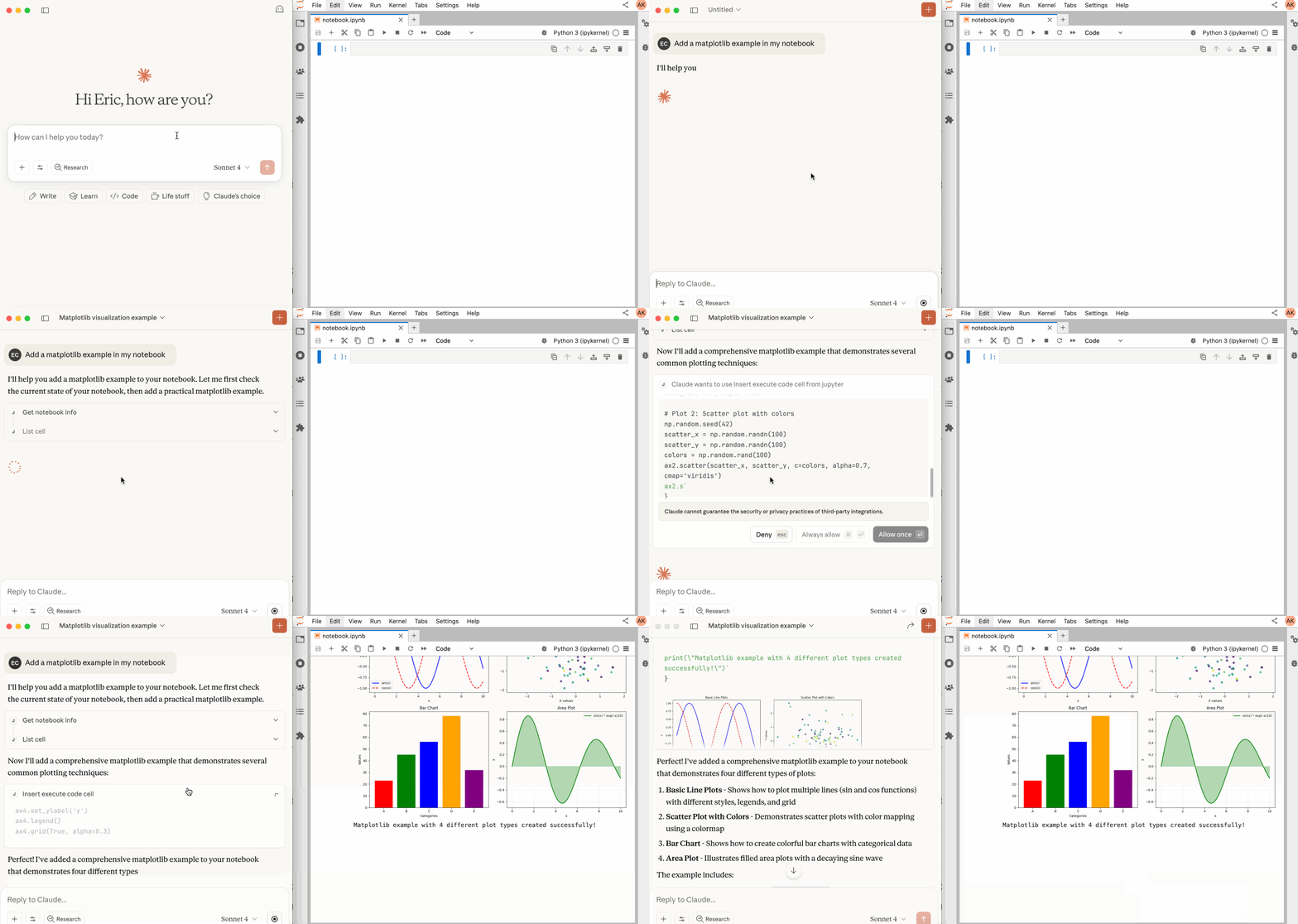
> **New in v1.1.0:** We are not supporting external `Sandboxes` (Datalayer, Kaggle, Monty, Google Colab, Modal...).
>
> Setup details [on this page](https://jupyter-mcp-server.datalayer.tech/transports/streamable-http/#3-configure-your-mcp-client)
>
> Join the conversation in our [Community page](https://jupyter-mcp-server.datalayer.tech/community) - your feedback will help us prioritize features and ensure these integrations work seamlessly for your needs.
## 📖 Table of Contents
- [Key Features](#-key-features)
- [MCP Overview](#-mcp-overview)
- [Getting Started](#-getting-started)
- [Sandbox Variants](#-execution-engines)
- [Best Practices](#-best-practices)
- [Contributing](#-contributing)
- [Resources](#-resources)
## 🚀 Key Features
- ⚡ **Real-time control:** Instantly view notebook changes as they happen.
- 🔁 **Smart execution:** Automatically adjusts when a cell run fails thanks to cell output feedback.
- 🧠 **Context-aware:** Understands the entire notebook context for more relevant interactions.
- 📊 **Multimodal support:** Support different output types, including images, plots, and text.
- 📚 **Multi-notebook support:** Seamlessly switch between multiple notebooks.
- 🎨 **JupyterLab integration:** Enhanced UI integration like automatic notebook opening.
- 🤝 **MCP-compatible:** Works with any MCP client, such as Claude Desktop, Cursor, Windsurf, and more.
- 🔍 **Observability:** Built-in hook system with OpenTelemetry integration for tracing tool calls and kernel executions.
Compatible with any Jupyter deployment (local, JupyterHub, ...) and with [Datalayer](https://datalayer.ai) hosted Notebooks.
## 🔧 MCP Overview
### 🔧 Tools Overview
The server provides a rich set of tools for interacting with Jupyter notebooks, categorized as follows.
For more details on each tool, their parameters, and return values, please refer to the [official Tools documentation](https://jupyter-mcp-server.datalayer.tech/tools).
#### Server and Runtime Management Tools
| Name | Description |
| :------------------- | :------------------------------------------------------------------------------------------------------------------------------------------------------------------------------------------------------------------------------------------------------------------------------------------------------- |
| `list_files` | List files and directories in the Jupyter server's file system. |
| `list_kernels` | List all available and running kernel sessions on the Jupyter server. |
| `launch_sandbox` | Launch a sandbox runtime (eval/docker/jupyter/datalayer/kaggle/colab/monty/modal) as an alternative execution backend for `execute_code`. Supports variant-specific options including GPU flavor for supported backends. Requires the `jupyter_mcp_sandboxes` extension. |
| `list_sandboxes` | List launched sandbox runtimes and their state (active flag, variant, status, and selected runtime options). Requires the `jupyter_mcp_sandboxes` extension. |
| `use_sandbox` | Select or clear the active sandbox used by `execute_code`, enabling dynamic routing between kernel-backed and sandbox-backed execution. Requires the `jupyter_mcp_sandboxes` extension. |
| `terminate_sandbox` | Stop and unregister a launched sandbox runtime. Requires the `jupyter_mcp_sandboxes` extension. |
| `connect_to_jupyter` | Connect to a Jupyter server dynamically without restarting the MCP server. *Not available when running as Jupyter extension. Useful for switching servers dynamically or avoiding hardcoded configuration.* [Read more](https://jupyter-mcp-server.datalayer.tech/reference/tools/#7-connect_to_jupyter) |
#### Multi-Notebook Management Tools
| Name | Description |
| :----------------- | :------------------------------------------------------------------------- |
| `use_notebook` | Connect to a notebook file, create a new one, or switch between notebooks. |
| `list_notebooks` | List all notebooks available on the Jupyter server and their status |
| `restart_notebook` | Restart the kernel for a specific managed notebook. |
| `unuse_notebook` | Disconnect from a specific notebook and release its resources. |
| `read_notebook` | Read notebook cells source content with brief or detailed format options. |
#### Cell Operations and Execution Tools
| Name | Description |
| :------------------------- | :------------------------------------------------------------------------------- |
| `read_cell` | Read the full content (Metadata, Source and Outputs) of a single cell. |
| `insert_cell` | Insert a new code or markdown cell at a specified position. |
| `delete_cell` | Delete a cell at a specified index. |
| `move_cell` | Move a cell from one position to another within a notebook. |
| `clear_cell_output` | Clear the outputs and execution count of a single code cell. |
| `overwrite_cell_source` | Overwrite the source code of an existing cell. |
| `edit_cell_source` | Apply surgical find-and-replace edits to a cell's source without full rewrite. |
| `execute_cell` | Execute a cell with timeout, supports multimodal output including images. |
| `insert_execute_code_cell` | Insert a new code cell and execute it in one step. |
| `execute_code` | Execute code directly in the active backend (kernel by default, or active sandbox if selected), supports magic commands and shell commands. When the selected sandbox supports streaming execution, progress/output events are consumed and returned in order. |
#### JupyterLab Integration
*Available only when JupyterLab mode is enabled. It is enabled by default.*
When running in JupyterLab mode, Jupyter MCP Server integrates with [jupyter-mcp-tools](https://github.com/datalayer/jupyter-mcp-tools) to expose additional JupyterLab commands as MCP tools. By default, the following tools are enabled:
| Name | Description |
| :--------------------------- | :----------------------------------------------------- |
| `notebook_run-all-cells` | Execute all cells in the current notebook sequentially |
| `notebook_get-selected-cell` | Get information about the currently selected cell |
📚 Learn how to customize additional tools
You can now customize which tools from `jupyter-mcp-tools` are available using the `allowed_jupyter_mcp_tools` configuration parameter. This allows you to enable additional notebook operations, console commands, file management tools, and more.
```bash
# Example: Enable additional tools via command-line
jupyter lab --port 4040 --IdentityProvider.token MY_TOKEN --JupyterMCPServerExtensionApp.allowed_jupyter_mcp_tools="notebook_run-all-cells,notebook_get-selected-cell,notebook_append-execute,console_create"
```
For the complete list of available tools and detailed configuration instructions, please refer to the [Additional Tools documentation](https://jupyter-mcp-server.datalayer.tech/reference/tools-additional).
### 📝 Prompt Overview
The server also supports [prompt feature](https://modelcontextprotocol.io/specification/2025-06-18/server/prompts) of MCP, providing a easy way for user to interact with Jupyter notebooks.
| Name | Description |
| :------------- | :-------------------------------------------------------------------------- |
| `jupyter-cite` | Cite specific cells from specified notebook (like `@` in Coding IDE or CLI) |
For more details on each prompt, their input parameters, and return content, please refer to the [official Prompt documentation](https://jupyter-mcp-server.datalayer.tech/reference/prompts).
## 🏁 Getting Started
For comprehensive setup instructions—including `Streamable HTTP` transport, running as a Jupyter Server extension and advanced configuration—check out [our documentation](https://jupyter-mcp-server.datalayer.tech/). Or, get started quickly with `JupyterLab` and `STDIO` transport here below.
### 1. Set Up Your Environment
```bash
pip install jupyterlab==4.4.1 jupyter-collaboration==4.0.2 jupyter-mcp-tools>=0.1.4 ipykernel pycrdt
```
> [!TIP]
> To confirm your environment is correctly configured:
>
> 1. Open a notebook in JupyterLab
> 1. Type some content in any cell (code or markdown)
> 1. Observe the tab indicator: you should see an "×" appear next to the notebook name, indicating unsaved changes
> 1. Wait a few seconds—the "×" should automatically change to a "●" without manually saving
>
> This automatic saving behavior confirms that the real-time collaboration features are working properly, which is essential for MCP server integration.
### 2. Start JupyterLab
```bash
# Start JupyterLab on port 8888, allowing access from any IP and setting a token
jupyter lab --port 8888 --IdentityProvider.token MY_TOKEN --ip 0.0.0.0
```
> [!NOTE]
> If you are running notebooks through JupyterHub instead of JupyterLab as above, refer to our [JupyterHub setup guide](https://jupyter-mcp-server.datalayer.tech//providers/jupyterhub-streamable-http/).
### 3. Configure Your Preferred MCP Client
Next, configure your MCP client to connect to the server. We offer two primary methods—choose the one that best fits your needs:
- **📦 Using `uvx` (Recommended for Quick Start):** A lightweight and fast method using `uv`. Ideal for local development and first-time users.
- **🐳 Using `Docker` (Recommended for Production):** A containerized approach that ensures a consistent and isolated environment, perfect for production or complex setups.
📦 Using uvx (Quick Start)
First, install `uv`:
```bash
pip install uv
uv --version
# should be 0.6.14 or higher
```
See more details on [uv installation](https://docs.astral.sh/uv/getting-started/installation/).
Then, configure your client:
```json
{
"mcpServers": {
"jupyter": {
"command": "uvx",
"args": ["jupyter-mcp-server@latest"],
"env": {
"JUPYTER_URL": "http://localhost:8888",
"JUPYTER_TOKEN": "MY_TOKEN",
"ALLOW_IMG_OUTPUT": "true"
}
}
}
}
```
🐳 Using Docker (Production)
**On macOS and Windows:**
```json
{
"mcpServers": {
"jupyter": {
"command": "docker",
"args": [
"run", "-i", "--rm",
"-e", "JUPYTER_URL",
"-e", "JUPYTER_TOKEN",
"-e", "ALLOW_IMG_OUTPUT",
"datalayer/jupyter-mcp-server:latest"
],
"env": {
"JUPYTER_URL": "http://host.docker.internal:8888",
"JUPYTER_TOKEN": "MY_TOKEN",
"ALLOW_IMG_OUTPUT": "true"
}
}
}
}
```
**On Linux:**
```json
{
"mcpServers": {
"jupyter": {
"command": "docker",
"args": [
"run", "-i", "--rm",
"-e", "JUPYTER_URL",
"-e", "JUPYTER_TOKEN",
"-e", "ALLOW_IMG_OUTPUT",
"--network=host",
"datalayer/jupyter-mcp-server:latest"
],
"env": {
"JUPYTER_URL": "http://localhost:8888",
"JUPYTER_TOKEN": "MY_TOKEN",
"ALLOW_IMG_OUTPUT": "true"
}
}
}
}
```
> [!TIP]
>
> 1. **Port Configuration**: Ensure the `port` in your Jupyter URLs matches the one used in the `jupyter lab` command. For simplified config, set this in `JUPYTER_URL`.
> 1. **Server Separation**: Use `JUPYTER_URL` when both services are on the same server, or set individual variables for advanced deployments. The different URL variables exist because some deployments separate notebook storage (`DOCUMENT_URL`) from kernel execution (`RUNTIME_URL`).
> 1. **Authentication**: In most cases, document and runtime services use the same authentication token. Use `JUPYTER_TOKEN` for simplified config or set `DOCUMENT_TOKEN` and `RUNTIME_TOKEN` individually for different credentials.
> 1. **Notebook Path**: The `DOCUMENT_ID` parameter specifies the path to the notebook the MCP client default to connect. It should be relative to the directory where JupyterLab was started. If you omit `DOCUMENT_ID`, the MCP client can automatically list all available notebooks on the Jupyter server, allowing you to select one interactively via your prompts.
> 1. **Image Output**: Set `ALLOW_IMG_OUTPUT` to `false` if your LLM does not support mutimodel understanding.
For detailed instructions on configuring various MCP clients—including [Claude Desktop](https://jupyter-mcp-server.datalayer.tech/clients/claude_desktop), [VS Code](https://jupyter-mcp-server.datalayer.tech/clients/vscode), [Cursor](https://jupyter-mcp-server.datalayer.tech/clients/cursor), [Cline](https://jupyter-mcp-server.datalayer.tech/clients/cline), and [Windsurf](https://jupyter-mcp-server.datalayer.tech/clients/windsurf) — see the [Clients documentation](https://jupyter-mcp-server.datalayer.tech/clients).
## 🧩 Sandbox Variants
By default, code executes through the `code-sandboxes` `jupyter` variant against
a Jupyter Server (`SANDBOX_VARIANT=jupyter`). Setting `SANDBOX_VARIANT` to any
other value uses another [code-sandboxes](https://github.com/datalayer/code-sandboxes)
engine via a `SandboxKernel` adapter, so the same notebook tools can run code on
additional backends.
Sandbox features are provided by the optional `jupyter_mcp_sandboxes` extension.
To expose sandbox lifecycle tools (`launch_sandbox`, `list_sandboxes`,
`use_sandbox`, `terminate_sandbox`) or run any non-`jupyter` sandbox variant,
install it with `pip install jupyter_mcp_sandboxes`.
| Engine | `SANDBOX_VARIANT` | Extra install | Key variables |
| ------------------------ | ------------------ | ------------------------------- | ----------------------------------------------------- |
| Jupyter Server (default) | `jupyter` | — | `JUPYTER_URL`, `JUPYTER_TOKEN` |
| JupyterHub | `jupyter` | — | `RUNTIME_URL`, `RUNTIME_TOKEN` |
| Datalayer | `datalayer` | `jupyter-mcp-server[datalayer]` | `RUNTIME_URL`, `RUNTIME_TOKEN`, `SANDBOX_ENVIRONMENT` |
| Kaggle | `kaggle` | `jupyter-mcp-server[kaggle]` | Default batch mode: Kaggle credentials (`KAGGLE_API_TOKEN` or `kaggle.json`). Interactive mode: `RUNTIME_URL` + (`KAGGLE_API_TOKEN`/`RUNTIME_TOKEN` or `RUNTIME_ID`). Optional accelerator: `SANDBOX_GPU`. |
| Google Colab | `colab` | `jupyter-mcp-server[colab]` | `RUNTIME_URL`, `RUNTIME_ID`, `RUNTIME_PROXY_TOKEN` |
| Monty | `monty` | `jupyter-mcp-server[monty]` | — |
| Modal | `modal` | `jupyter-mcp-server[modal]` | Modal credentials |
### 1. Jupyter Server
The default engine. Point the server at a running Jupyter Server:
```bash
pip install jupyter-mcp-server
```
```json
"env": {
"JUPYTER_URL": "http://localhost:8888",
"JUPYTER_TOKEN": "MY_TOKEN"
}
```
### 2. JupyterHub
JupyterHub uses the same `jupyter` engine, targeting a user's single-user server.
Authenticate with a JupyterHub API token that has the `access:servers` scope:
```json
"env": {
"RUNTIME_URL": "https://your-jupyterhub.domain/user/",
"RUNTIME_TOKEN": "your-jupyterhub-api-token",
"DOCUMENT_URL": "https://your-jupyterhub.domain/user/",
"DOCUMENT_TOKEN": "your-jupyterhub-api-token"
}
```
See the [JupyterHub setup guide](https://jupyter-mcp-server.datalayer.tech/providers/jupyterhub-streamable-http/) for full details.
### 3. Datalayer
Execute on the [Datalayer](https://datalayer.ai) cloud runtime with GPU support
and persistence:
```bash
pip install "jupyter-mcp-server[datalayer]"
```
```json
"env": {
"SANDBOX_VARIANT": "datalayer",
"RUNTIME_URL": "https://prod1.datalayer.run",
"RUNTIME_TOKEN": "your-datalayer-token",
"SANDBOX_ENVIRONMENT": "python-cpu-env"
}
```
### 4. Kaggle
Execute against Kaggle. By default, when no runtime URL/channels are provided,
the server uses the transparent Kaggle **batch** path from `code-sandboxes`.
If runtime values are provided, it uses Kaggle interactive kernel mode.
```bash
pip install "jupyter-mcp-server[kaggle]"
```
```json
"env": {
"SANDBOX_VARIANT": "kaggle",
"KAGGLE_API_TOKEN": "...",
"SANDBOX_GPU": "T4"
}
```
To force interactive runtime mode, provide `RUNTIME_URL` and either:
- `KAGGLE_API_TOKEN` / `RUNTIME_TOKEN` (create kernel), or
- `RUNTIME_ID` / `RUNTIME_CHANNELS_URL` (connect existing kernel).
Supported Kaggle accelerator values include:
`NvidiaTeslaP100`, `NvidiaTeslaT4`, `NvidiaTeslaT4Highmem`, `NvidiaL4`,
`NvidiaL4X1`, `NvidiaTeslaA100`, `NvidiaH100`, and `NvidiaRtxPro6000`.
Aliases such as `P100` and `T4` are accepted.
> Note: Kaggle free-tier availability usually includes `P100` and `T4`. Other
> accelerators are commonly restricted to specific competitions or internal
> Kaggle workloads.
### 5. Google Colab
Execute against a Google Colab runtime. Install the extra and provide the values
from an active Colab notebook session:
```bash
pip install "jupyter-mcp-server[colab]"
```
```json
"env": {
"SANDBOX_VARIANT": "colab",
"RUNTIME_URL": "https://8080-m-s-kkb-...-d.us-east1-0.prod.colab.dev",
"RUNTIME_ID": "a1b2c3d4-....",
"RUNTIME_PROXY_TOKEN": "ya29...."
}
```
> The proxy token (`colab-runtime-proxy-token`) is short-lived; refresh it when it
> expires.
You can also pass `RUNTIME_CHANNELS_URL` with the Colab channels WebSocket URL
and let the server derive `RUNTIME_URL` and `RUNTIME_ID`.
### 6. Monty
Execute in [Monty](https://github.com/pydantic/monty), a secure in-process Python
interpreter — ideal for short, safe LLM snippets. No credentials required.
```bash
pip install "jupyter-mcp-server[monty]"
```
```json
"env": {
"SANDBOX_VARIANT": "monty"
}
```
> Monty supports only a subset of Python; third-party libraries and rich display
> outputs are not available.
### 7. Modal
Execute in a [Modal](https://modal.com/docs/guide) cloud sandbox. Install the
extra and configure Modal credentials:
```bash
pip install "jupyter-mcp-server[modal]"
modal token new
```
For local development, `modal token new` is usually enough because the Modal SDK
loads credentials from `~/.modal.toml`.
If you run in CI/CD, containers, or hosted runners, set both environment
variables below.
```json
"env": {
"SANDBOX_VARIANT": "modal",
"MODAL_TOKEN_ID": "ak-...",
"MODAL_TOKEN_SECRET": "as-..."
}
```
Why both variables? Modal uses a token pair for environment-based auth:
- `MODAL_TOKEN_ID`: public token identifier.
- `MODAL_TOKEN_SECRET`: secret half paired with that id.
Providing only one is insufficient for authentication.
If needed, export both values from your local Modal config:
```bash
python - <<'PY'
import pathlib
import tomllib
cfg = tomllib.loads(pathlib.Path("~/.modal.toml").expanduser().read_text())
profile = cfg.get("default", cfg)
token_id = profile.get("token_id")
token_secret = profile.get("token_secret")
if token_id and token_secret:
print(f"export MODAL_TOKEN_ID={token_id}")
print(f"export MODAL_TOKEN_SECRET={token_secret}")
else:
raise SystemExit("Could not find token_id/token_secret in ~/.modal.toml")
PY
```
> You can also select the engine on the command line with
> `--sandbox-variant`, `--runtime-proxy-token`, and `--sandbox-environment`.
## 🧪 Testing
Run the test suite:
```bash
pytest tests/
```
Required environment variables for tests:
- None for the default local suite.
Optional environment variables:
- `TEST_MCP_SERVER`: `true`/`false` toggle for standalone MCP server mode tests (default `true`).
- `TEST_JUPYTER_SERVER`: `true`/`false` toggle for Jupyter extension mode tests (default `true`).
- `DATALAYER_API_KEY`: required only for Datalayer cloud smoke/integration tests.
- `DATALAYER_RUN_URL`: optional custom Datalayer runtime URL for datalayer engine tests.
- `SANDBOX_ENVIRONMENT`: optional cloud environment override (for example `ai-agents-env`).
## ✅ Best Practices
- Interact with LLMs that supports multimodal input (like Gemini 2.5 Pro) to fully utilize advanced multimodal understanding capabilities.
- Use a MCP client that supports returning image data and can parse it (like Cursor, Gemini CLI, etc.), as some clients may not support this feature.
- Break down complex task (like the whole data science workflow) into multiple sub-tasks (like data cleaning, feature engineering, model training, model evaluation, etc.) and execute them step-by-step.
- Provide clearly structured prompts and rules (👉 Visit our [Prompt Templates](https://github.com/datalayer/jupyter-mcp-server/blob/HEAD/prompt/README.md) to get started)
- Provide as much context as possible (like already installed packages, field explanations for existing datasets, current working directory, detailed task requirements, etc.).
## 🤝 Contributing
We welcome contributions of all kinds! Here are some examples:
- 🐛 Bug fixes
- 📝 Improvements to existing features
- 🔧 New feature development
- 📚 Documentation improvements and prompt templates
For detailed instructions on how to get started with development and submit your contributions, please see our [**Contributing Guide**](https://github.com/datalayer/jupyter-mcp-server/blob/HEAD/CONTRIBUTING.md).
### Our Contributors
[](https://github.com/datalayer/jupyter-mcp-server/graphs/contributors)
## 📚 Resources
Looking for blog posts, videos, or other materials about Jupyter MCP Server?
👉 Visit the [**Resources section**](https://jupyter-mcp-server.datalayer.tech/resources) in our documentation for more!
[](https://star-history.com/#datalayer/jupyter-mcp-server&type=Date)
______________________________________________________________________
**If this project is helpful to you, please give us a ⭐️**
Made with ❤️ by [Datalayer](https://github.com/datalayer)