---
slug: "mobile"
source_type: "readme"
source_url: "https://cdn.jsdelivr.net/gh/mobile-next/mobile-mcp@main/README.md"
repo: "https://github.com/mobile-next/mobile-mcp"
source_file: "README.md"
branch: "main"
---
# Mobile Next - MCP server for Mobile Development and Automation | iOS, Android, Simulator, Emulator, and Real Devices
This is a [Model Context Protocol (MCP) server](https://github.com/modelcontextprotocol) that enables scalable mobile automation, development through a platform-agnostic interface, eliminating the need for distinct iOS or Android knowledge. You can run it on emulators, simulators, and real devices (iOS and Android).
This server allows Agents and LLMs to interact with native iOS/Android applications and devices through structured accessibility snapshots or coordinate-based taps based on screenshots.
**Works with Claude Code, Codex, Gemini, GitHub Copilot, Antigravity** — or any MCP-compatible client.






https://github.com/user-attachments/assets/bb084777-beb3-4930-ae6f-8d3fe694ddde
### Main use cases
How we help to scale mobile automation:
- 📲 Native app automation (iOS and Android) for testing or data-entry scenarios.
- 📝 Scripted flows and form interactions without manually controlling simulators/emulators or real devices (iPhone, Samsung, Google Pixel etc)
- 🧭 Automating multi-step user journeys driven by an LLM
- 👆 General-purpose mobile application interaction for agent-based frameworks
- 🤖 Enables agent-to-agent communication for mobile automation usecases, data extraction
## Main Features
- 🚀 **Accessibility-first — fast and cheap**: drives apps from the native accessibility tree (no vision model, no image tokens), falling back to screenshots + coordinates only when needed.
- 📱 **One API, every target**: the same tools work across iOS and Android — simulators, emulators, and real devices.
- 🧠 **No platform expertise required**: no XCUITest, no Espresso, no per-platform glue — describe the goal and the agent does it.
- 🧰 **Full device control**: taps, swipes, and gestures; app install/launch/terminate; screen recording; hardware buttons; deep links; orientation.
- 📊 **Structured, deterministic output**: reads real UI elements and extracts structured data, cutting the ambiguity of screenshot-only approaches.
### 🎯 Platform Support
| Target | Supported | Setup |
|---|:---:|---|
| iOS Simulator | ✅ | Xcode + a booted simulator (`xcrun simctl`) |
| iOS Real Device | ✅ | go-ios + WebDriverAgent + tunnel |
| Android Emulator | ✅ | Android SDK + running emulator (`adb`) |
| Android Real Device | ✅ | `adb` + USB debugging enabled & authorized |
## 🔧 Available MCP Tools
### Device Management
- **`mobile_list_available_devices`** - List all available devices (simulators, emulators, and real devices)
- **`mobile_get_screen_size`** - Get the screen size of the mobile device in pixels
- **`mobile_get_orientation`** - Get the current screen orientation of the device
- **`mobile_set_orientation`** - Change the screen orientation (portrait/landscape)
### App Management
- **`mobile_list_apps`** - List all installed apps on the device
- **`mobile_launch_app`** - Launch an app using its package name
- **`mobile_terminate_app`** - Stop and terminate a running app
- **`mobile_install_app`** - Install an app from file (.apk, .ipa, .app, .zip)
- **`mobile_uninstall_app`** - Uninstall an app using bundle ID or package name
### Screen Interaction
- **`mobile_take_screenshot`** - Take a screenshot to understand what's on screen
- **`mobile_save_screenshot`** - Save a screenshot to a file
- **`mobile_list_elements_on_screen`** - List UI elements with their coordinates and properties
- **`mobile_click_on_screen_at_coordinates`** - Click at specific x,y coordinates
- **`mobile_double_tap_on_screen`** - Double-tap at specific coordinates
- **`mobile_long_press_on_screen_at_coordinates`** - Long press at specific coordinates
- **`mobile_swipe_on_screen`** - Swipe in any direction (up, down, left, right)
- **`mobile_start_screen_recording`** - Start recording the device screen to a video file
- **`mobile_stop_screen_recording`** - Stop the active screen recording and save the video
### Input & Navigation
- **`mobile_type_keys`** - Type text into focused elements with optional submit
- **`mobile_press_button`** - Press device buttons (HOME, BACK, VOLUME_UP/DOWN, ENTER, etc.)
- **`mobile_open_url`** - Open URLs in the device browser
### Crash Reports
- **`mobile_list_crashes`** - List crash reports available on the device
- **`mobile_get_crash`** - Get the full content of a crash report by its ID
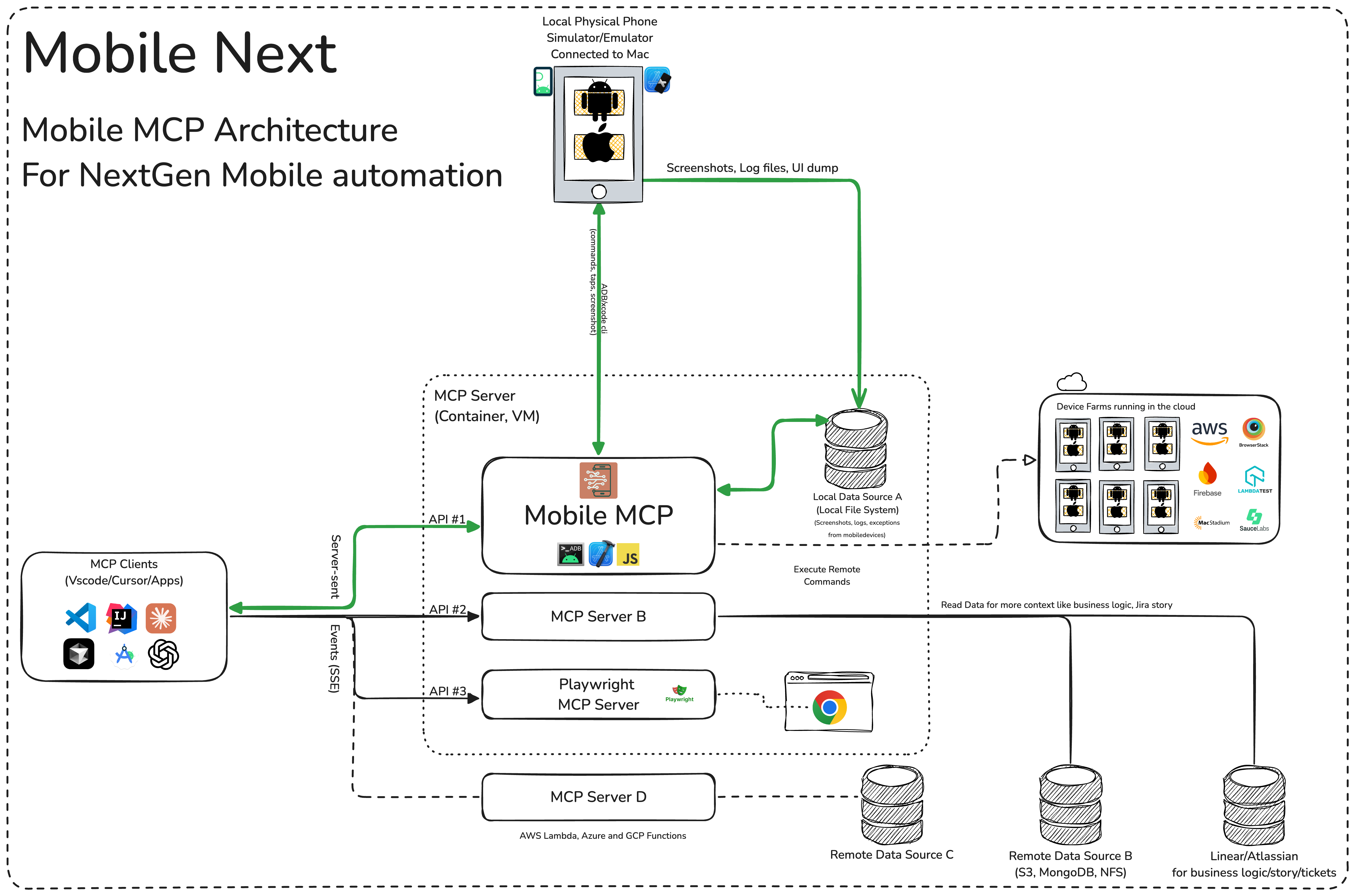
## 🏗️ Mobile MCP Architecture
## 📚 Wiki page
More details in our [wiki page](https://github.com/mobile-next/mobile-mcp/wiki) for setup, configuration and debugging related questions.
## Prerequisites
What you will need to connect MCP with your agent and mobile devices:
- [Xcode command line tools](https://developer.apple.com/xcode/resources/)
- [Android Platform Tools](https://developer.android.com/tools/releases/platform-tools)
- [node.js](https://nodejs.org/en/download/) v20+
- [MCP](https://modelcontextprotocol.io/introduction) supported foundational models or agents, like [Claude MCP](https://modelcontextprotocol.io/quickstart/server), [OpenAI Agent SDK](https://openai.github.io/openai-agents-python/mcp/), [Copilot Studio](https://www.microsoft.com/en-us/microsoft-copilot/blog/copilot-studio/introducing-model-context-protocol-mcp-in-copilot-studio-simplified-integration-with-ai-apps-and-agents/)
For iOS **real devices** (simulators and Android don't need these), you'll also need [go-ios](https://github.com/danielpaulus/go-ios), [WebDriverAgent](https://github.com/appium/WebDriverAgent) installed on the device, and an iOS device tunnel. See the [wiki](https://github.com/mobile-next/mobile-mcp/wiki) for setup.
## Installation and configuration
**Standard config** works in most of the tools:
```json
{
"mcpServers": {
"mobile-mcp": {
"command": "npx",
"args": ["-y", "@mobilenext/mobile-mcp@latest"]
}
}
}
```
Amp
Add via the Amp VS Code extension settings screen or by updating your `settings.json` file:
```json
"amp.mcpServers": {
"mobile-mcp": {
"command": "npx",
"args": [
"@mobilenext/mobile-mcp@latest"
]
}
}
```
**Amp CLI:**
Run the following command in your terminal:
```bash
amp mcp add mobile-mcp -- npx @mobilenext/mobile-mcp@latest
```
Antigravity 2
Antigravity doesn't have a CLI command to add MCP servers, so add it manually. Edit `~/.gemini/config/mcp_config.json` and add:
```json
{
"mcpServers": {
"mobile-mcp": {
"command": "npx",
"args": ["-y", "@mobilenext/mobile-mcp@latest"]
}
}
}
```
Cline
To setup Cline, just add the json above to your MCP settings file.
[More in our wiki](https://github.com/mobile-next/mobile-mcp/wiki/Cline)
Claude Code
Use the Claude Code CLI to add the Mobile MCP server:
```bash
claude mcp add mobile-mcp -- npx -y @mobilenext/mobile-mcp@latest
```
Claude Desktop
Follow the [MCP install guide](https://modelcontextprotocol.io/quickstart/user), use json configuration above.
Codex
Use the Codex CLI to add the Mobile MCP server:
```bash
codex mcp add mobile-mcp npx "@mobilenext/mobile-mcp@latest"
```
Alternatively, create or edit the configuration file `~/.codex/config.toml` and add:
```toml
[mcp_servers.mobile-mcp]
command = "npx"
args = ["@mobilenext/mobile-mcp@latest"]
```
For more information, see the Codex MCP documentation.
Copilot
Use the Copilot CLI to interactively add the Mobile MCP server:
```text
/mcp add
```
You can edit the configuration file `~/.copilot/mcp-config.json` and add:
```json
{
"mcpServers": {
"mobile-mcp": {
"type": "local",
"command": "npx",
"tools": [
"*"
],
"args": [
"@mobilenext/mobile-mcp@latest"
]
}
}
}
```
For more information, see the Copilot CLI documentation.
Cursor
#### Click the button to install:
[ ](https://cursor.com/en/install-mcp?name=Mobile%20MCP&config=eyJjb21tYW5kIjoibnB4IiwiYXJncyI6WyIteSIsIkBtb2JpbGVuZXh0L21vYmlsZS1tY3BAbGF0ZXN0Il19)
#### Or install manually:
Go to `Cursor Settings` -> `MCP` -> `Add new MCP Server`. Name to your liking, use `command` type with the command `npx -y @mobilenext/mobile-mcp@latest`. You can also verify config or add command like arguments via clicking `Edit`.
](https://cursor.com/en/install-mcp?name=Mobile%20MCP&config=eyJjb21tYW5kIjoibnB4IiwiYXJncyI6WyIteSIsIkBtb2JpbGVuZXh0L21vYmlsZS1tY3BAbGF0ZXN0Il19)
#### Or install manually:
Go to `Cursor Settings` -> `MCP` -> `Add new MCP Server`. Name to your liking, use `command` type with the command `npx -y @mobilenext/mobile-mcp@latest`. You can also verify config or add command like arguments via clicking `Edit`.
Gemini CLI
Use the Gemini CLI to add the Mobile MCP server:
```bash
gemini mcp add mobile-mcp npx -y @mobilenext/mobile-mcp@latest
```
Goose
#### Click the button to install:
[](https://block.github.io/goose/extension?cmd=npx&arg=-y&arg=%40mobilenext%2Fmobile-mcp%40latest&id=mobile-mcp&name=Mobile%20MCP&description=Mobile%20automation%20and%20development%20for%20iOS%2C%20Android%2C%20simulators%2C%20emulators%2C%20and%20real%20devices)
#### Or install manually:
Go to `Advanced settings` -> `Extensions` -> `Add custom extension`. Name to your liking, use type `STDIO`, and set the `command` to `npx -y @mobilenext/mobile-mcp@latest`. Click "Add Extension".
Kiro
Follow the MCP Servers [documentation](https://kiro.dev/docs/mcp/). For example in `.kiro/settings/mcp.json`:
```json
{
"mcpServers": {
"mobile-mcp": {
"command": "npx",
"args": [
"@mobilenext/mobile-mcp@latest"
]
}
}
}
```
opencode
Follow the MCP Servers documentation. For example in `~/.config/opencode/opencode.json`:
```json
{
"$schema": "https://opencode.ai/config.json",
"mcp": {
"mobile-mcp": {
"type": "local",
"command": [
"npx",
"@mobilenext/mobile-mcp@latest"
],
"enabled": true
}
}
}
```
Windsurf
Open Windsurf settings, navigate to MCP servers, and add a new server using the `command` type with:
```bash
npx @mobilenext/mobile-mcp@latest
```
Or add the standard config under `mcpServers` in your settings as shown above.
[Read more in our wiki](https://github.com/mobile-next/mobile-mcp/wiki)! 🚀
### ✅ Verify it works
Once the server is configured, ask your agent to list devices:
> list available devices
You should get back your running simulators, emulators, and connected devices. If you do, Mobile MCP is wired up correctly. If the list is empty, make sure a simulator or emulator is running (see [Prerequisites](#prerequisites)) — for more help, check the [wiki](https://github.com/mobile-next/mobile-mcp/wiki).
### SSE Server Mode
By default, Mobile MCP runs over stdio. To start an SSE server instead, use the `--listen` flag:
```bash
npx @mobilenext/mobile-mcp@latest --listen 3000
```
This binds to `localhost:3000`. To bind to a specific interface:
```bash
npx @mobilenext/mobile-mcp@latest --listen 0.0.0.0:3000
```
Then configure your MCP client to connect to `http://:3000/mcp`.
#### Authorization
To require Bearer token authorization on the SSE server, set the `MOBILEMCP_AUTH` environment variable:
```bash
MOBILEMCP_AUTH=my-secret-token npx @mobilenext/mobile-mcp@latest --listen 3000
```
When set, all requests must include the header `Authorization: Bearer my-secret-token`.
### 🛠️ How to Use 📝
After adding the MCP server to your IDE/Client, you can instruct your AI assistant to use the available tools.
For example, in Cursor's agent mode, you could use the prompts below to quickly validate, test and iterate on UI interactions, read information from screen, go through complex workflows.
Be descriptive, straight to the point.
### ✨ Example Prompts
#### Workflows
You can specify detailed workflows in a single prompt, verify business logic, setup automations. You can go crazy:
**Search for a video, comment, like and share it.**
```
Find the video called " Beginner Recipe for Tonkotsu Ramen" by Way of
Ramen, click on like video, after liking write a comment " this was
delicious, will make it next Friday", share the video with the first
contact in your whatsapp list.
```
**Download a successful step counter app, register, setup workout and 5-star the app**
```
Find and Download a free "Pomodoro" app that has more than 1k stars.
Launch the app, register with my email, after registration find how to
start a pomodoro timer. When the pomodoro timer started, go back to the
app store and rate the app 5 stars, and leave a comment how useful the
app is.
```
**Search in Substack, read, highlight, comment and save an article**
```
Open Substack website, search for "Latest trends in AI automation 2025",
open the first article, highlight the section titled "Emerging AI trends",
and save article to reading list for later review, comment a random
paragraph summary.
```
**Reserve a workout class, set timer**
```
Open ClassPass, search for yoga classes tomorrow morning within 2 miles,
book the highest-rated class at 7 AM, confirm reservation,
setup a timer for the booked slot in the phone
```
**Find a local event, setup calendar event**
```
Open Eventbrite, search for AI startup meetup events happening this
weekend in "Austin, TX", select the most popular one, register and RSVP
yes to the event, setup a calendar event as a reminder.
```
**Check weather forecast and send a Whatsapp/Telegram/Slack message**
```
Open Weather app, check tomorrow's weather forecast for "Berlin", and
send the summary via Whatsapp/Telegram/Slack to contact "Lauren Trown",
thumbs up their response.
```
- **Schedule a meeting in Zoom and share invite via email**
```
Open Zoom app, schedule a meeting titled "AI Hackathon" for tomorrow at
10AM with a duration of 1 hour, copy the invitation link, and send it via
Gmail to contacts "team@example.com".
```
[More prompt examples can be found here.](https://github.com/mobile-next/mobile-mcp/wiki/Prompt-Example-repo-list)
## Running & configuration
### Environment variables
| Variable | Description | Example |
|---|---|---|
| `MOBILEMCP_AUTH` | Require a Bearer token on the SSE server — every request must then send `Authorization: Bearer `. | `MOBILEMCP_AUTH=my-secret-token` |
| `MOBILEMCP_DISABLE_TELEMETRY` | Disable anonymous usage telemetry. | `MOBILEMCP_DISABLE_TELEMETRY=1` |
| `MOBILEMCP_ALLOW_UNSAFE_URLS` | Allow `mobile_open_url` to open non-standard URL schemes (blocked by default). | `MOBILEMCP_ALLOW_UNSAFE_URLS=1` |
### Simulators, Emulators, and Real Devices
When launched, Mobile MCP can connect to:
- iOS Simulators on macOS/Linux
- Android Emulators on Linux/Windows/macOS
- iOS or Android real devices (requires proper platform tools and drivers)
Make sure you have your mobile platform SDKs (Xcode, Android SDK) installed and configured properly before running Mobile Next Mobile MCP.
### Telemetry
Mobile MCP collects anonymous usage telemetry via PostHog. To disable it, set the `MOBILEMCP_DISABLE_TELEMETRY` environment variable:
```bash
MOBILEMCP_DISABLE_TELEMETRY=1 npx @mobilenext/mobile-mcp@latest
```
For json configurations:
```json
{
"mcpServers": {
"mobile-mcp": {
"command": "npx",
"args": ["-y", "@mobilenext/mobile-mcp@latest"],
"env": {
"MOBILEMCP_DISABLE_TELEMETRY": "1"
}
}
}
}
```
### Running in "headless" mode on Simulators/Emulators
When you do not have a real device connected to your machine, you can run Mobile MCP with an emulator or simulator in the background.
For example, on Android:
1. Start an emulator (avdmanager / emulator command).
2. Run Mobile MCP with the desired flags
On iOS, you'll need Xcode and to run the Simulator before using Mobile MCP with that simulator instance.
- `xcrun simctl list`
- `xcrun simctl boot "iPhone 16"`
## 🧩 Part of Mobile Next
Mobile MCP is one piece of a toolkit for driving real mobile devices:
- **[mobilewright](https://github.com/mobile-next/mobilewright)** — "Playwright for mobile." When you're ready to turn agent-driven exploration into **repeatable, deterministic tests** for iOS and Android, graduate to mobilewright.
- **[mobilecli](https://github.com/mobile-next/mobilecli)** — the universal device CLI that Mobile MCP is built on: control devices, simulators, and emulators from the command line or a JSON-RPC API.
- **[Mobile Next Cloud](https://mobilenext.ai)** — run all of it against real iOS and Android devices in the cloud, on demand.
## 🚀 Roadmap
We're continuously improving Mobile MCP. See what we're building next in [ROADMAP.md](https://github.com/mobile-next/mobile-mcp/blob/HEAD/ROADMAP.md) — priorities are shaped heavily by community feedback, so tell us what you'd like to see.
## 🤝 Contributing
Contributions are welcome — code, docs, bug reports, and ideas.
- ⭐ **[Star the repo](https://github.com/mobile-next/mobile-mcp)** — the easiest way to help others discover Mobile MCP.
- Read [CONTRIBUTING.md](https://github.com/mobile-next/mobile-mcp/blob/HEAD/CONTRIBUTING.md) for how to build, test, and open a pull request.
- Browse [open issues](https://github.com/mobile-next/mobile-mcp/issues) to find something to work on.
- Questions and ideas are also welcome in our [Slack community](https://mobilenext.ai/join-slack).
Please also review our [Code of Conduct](https://github.com/mobile-next/mobile-mcp/blob/HEAD/CODE_OF_CONDUCT.md).
# Thanks to all contributors ❤️
### We appreciate everyone who has helped improve this project.